Two-factor, twice over
Secure your Key Nest account with a second factor — and manage the 2FA codes of all your websites right on the secret. Like an authenticator app, but shareable across your team.
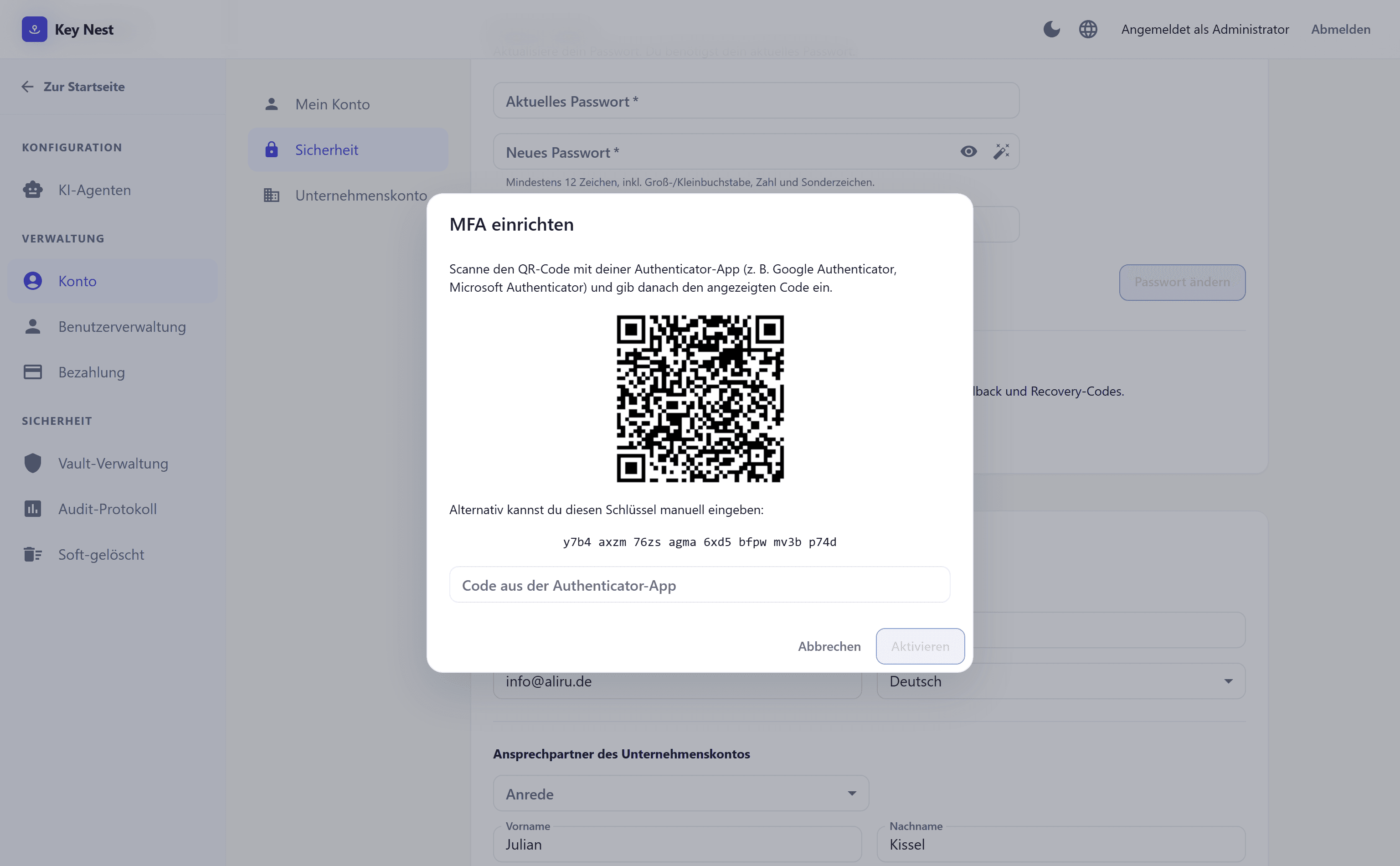
Account MFA with an authenticator app
Protect your sign-in with TOTP codes from Google Authenticator, Microsoft Authenticator & co. — set up in two minutes.
Email code as fallback
Phone not at hand? Have a one-time code sent to your email address and still sign in securely.
Ten recovery codes
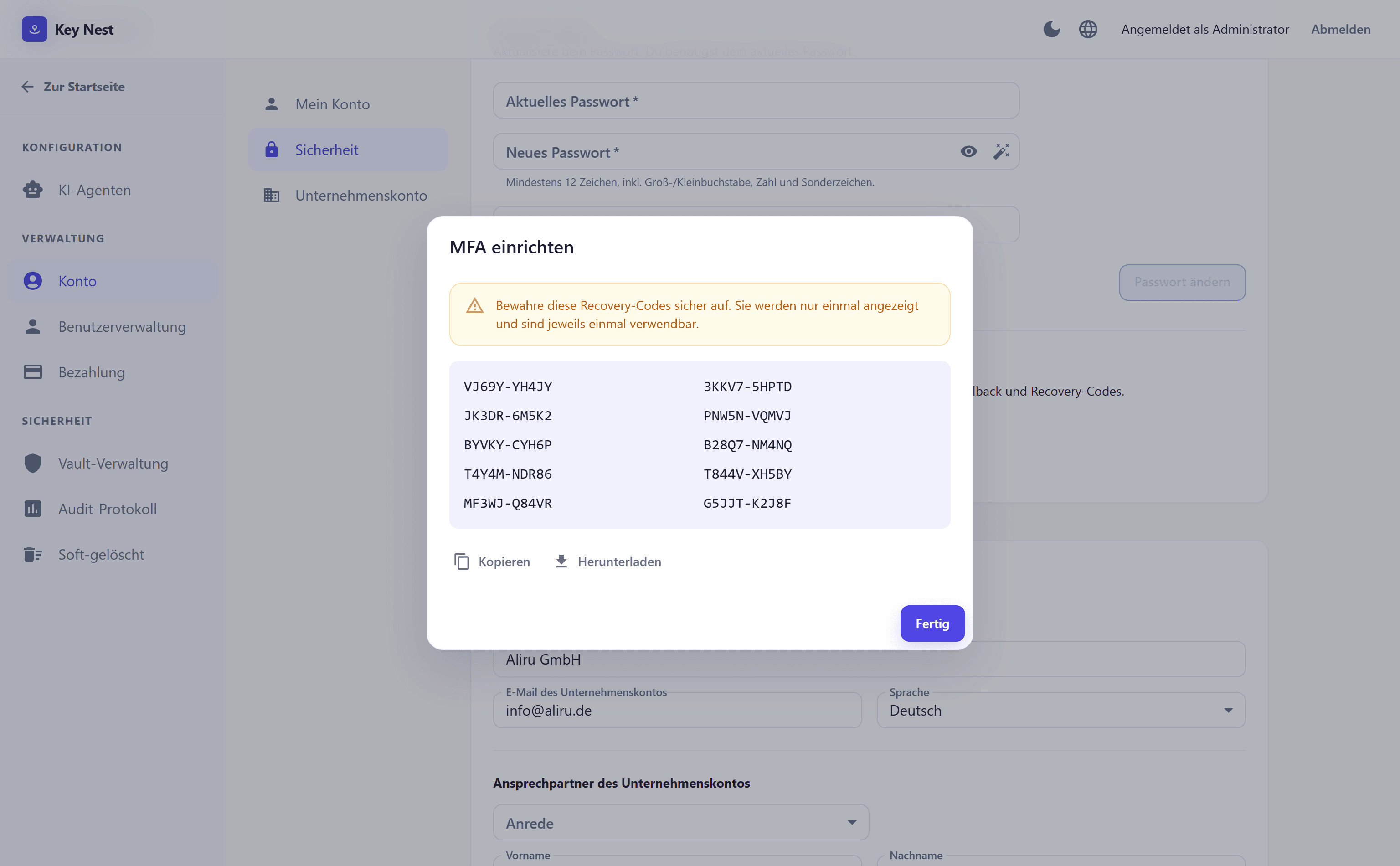
One-time codes for emergencies: store them safely, and a lost device never locks you out of your vault.
Works in the browser extension too
The MFA challenge applies everywhere — signing in to the web app and unlocking the browser extension alike.
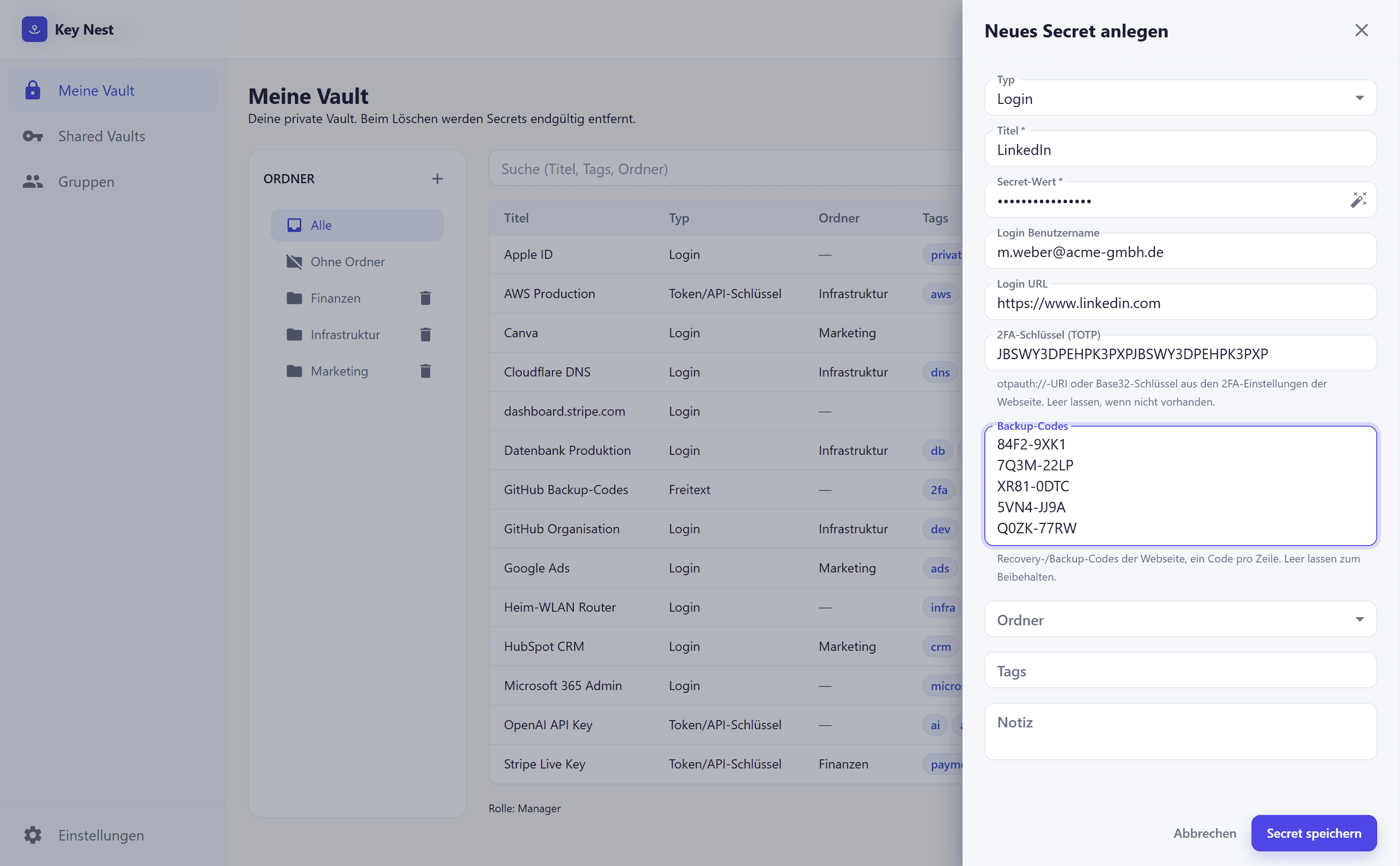
A 2FA key per login
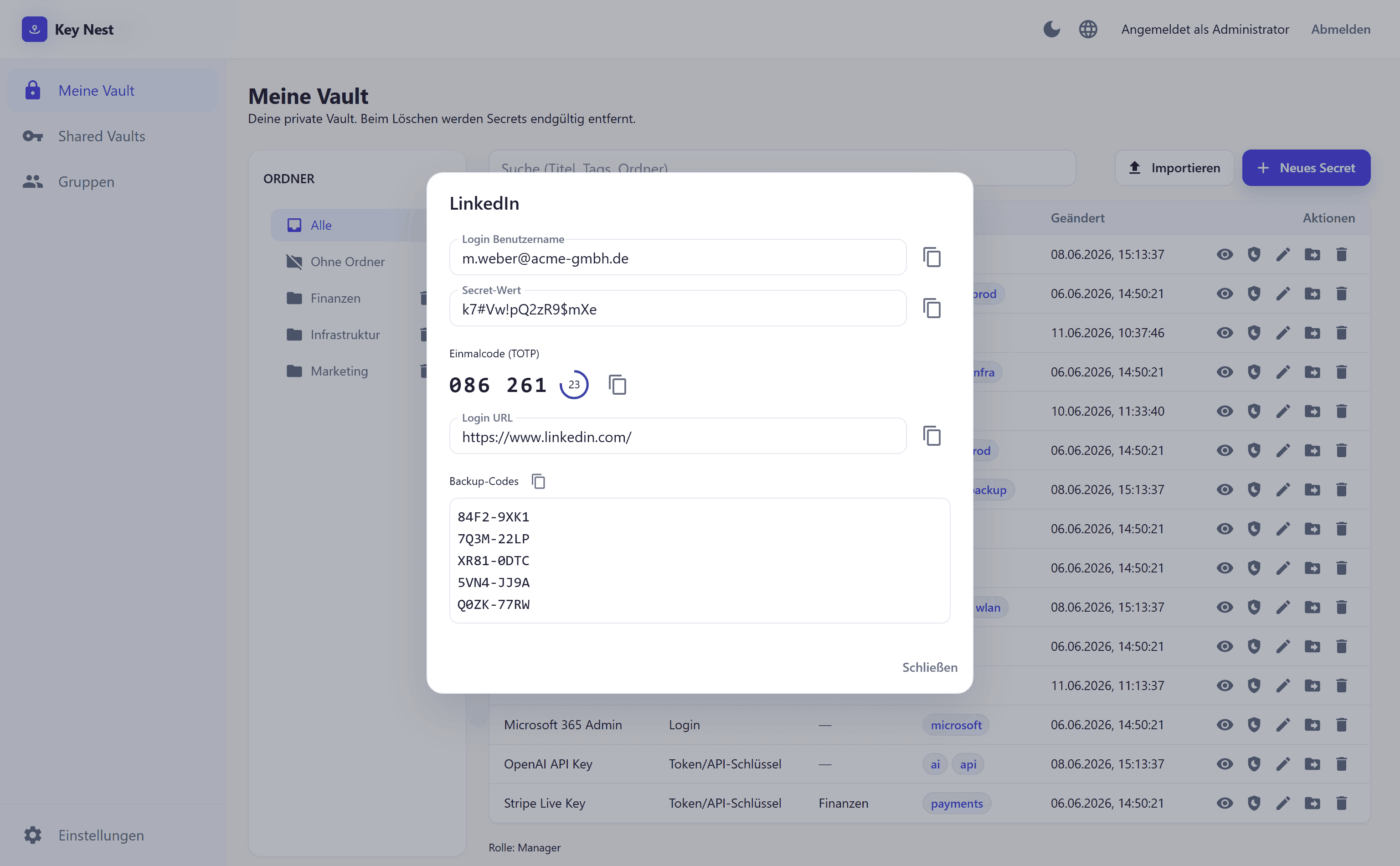
Store each website's TOTP key right on the secret. Key Nest shows the rotating one-time code live — for the whole team.
Backup codes included
The website's backup codes get their own encrypted field — no more screenshots lost in file chaos.
Set up in two minutes
Scan the QR code with your authenticator app, confirm the six-digit code — done. The key can also be entered manually. That's all it takes to protect your account with a second factor.
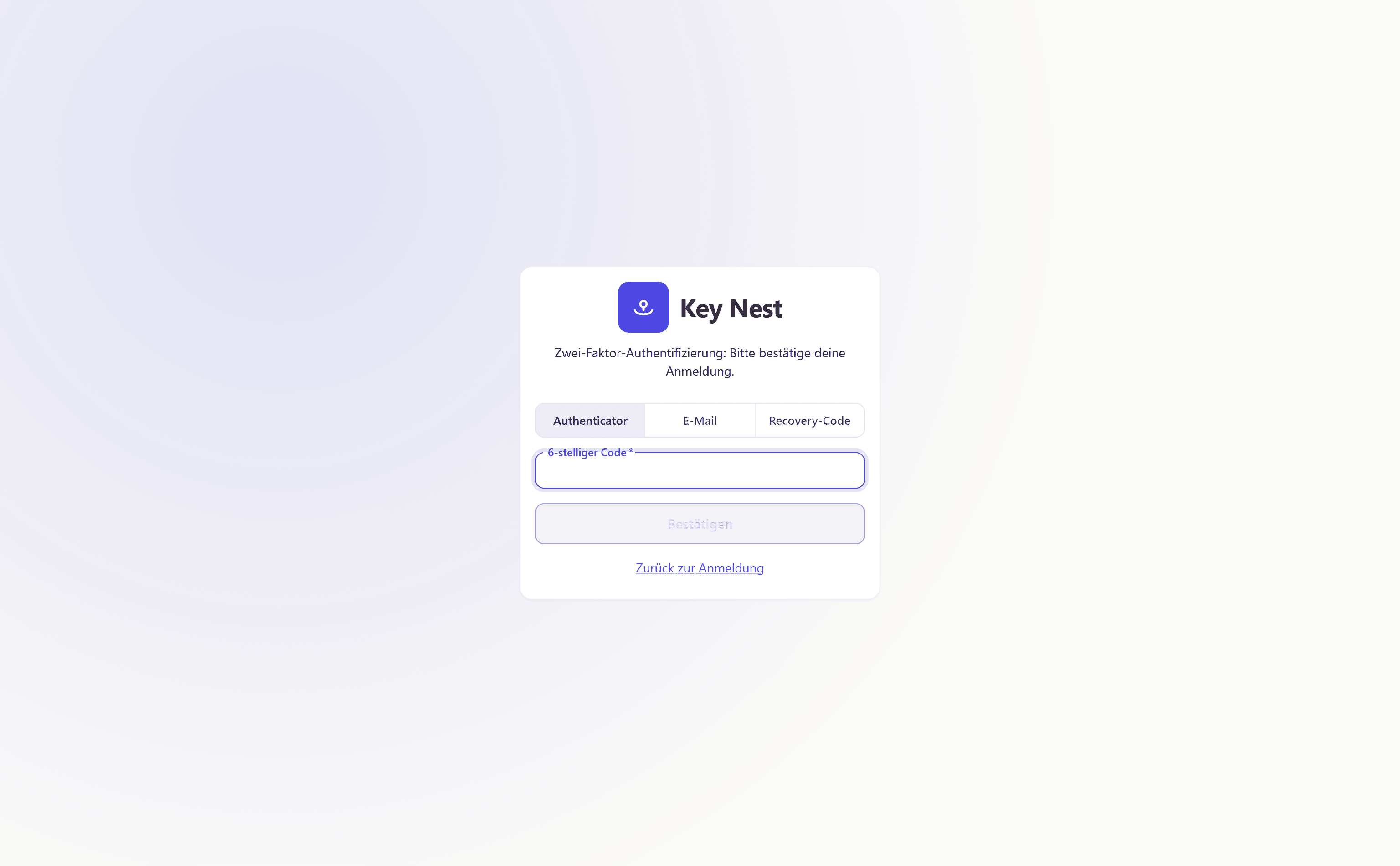
Sign-in with a second factor
After username and password, Key Nest asks for the second factor — authenticator code, email code, or recovery code, your choice. Failed attempts count towards the account lockout, so brute force doesn't stand a chance.
Recovery codes for emergencies
During setup you receive ten one-time codes to copy or download. A lost phone no longer means being locked out — each code works exactly once and can be regenerated at any time.
2FA keys right on the secret
When creating or editing a login, store the website's 2FA key — as an otpauth URI or Base32 key — plus its backup codes. Both are stored AES-256-GCM encrypted like every secret value, and your browser computes the one-time codes itself.
Ready for 2FA without the paper chase?
Secure your account, share team logins including one-time codes — up and running in minutes.
Try for free